Big Data on the Cloud using Ansible, RHadoop, AppScale, and AWS/Eucalyptus

Background

Big Data has been a hot topic over the last few years.  Big Data on public clouds, such as AWS’s Elastic MapReduce, has been gaining even more popularity as cloud computing becomes more of an industry standard.

R  is an open source project for statistical computing and graphics.  It has been growing in popularity for doing  linear and nonlinear modeling, classical statistical tests, time-series analysis and others, at various Universities and companies.

R Project
R Project

RHadoop was developed by Revolution Analytics to interface with Hadoop.  Revolution Analytics builds analytic software solutions using R.

Revolution Analytics

AppScale is an open source PaaS that implements the Google AppEngine API on IaaS environments.  One of the Google AppEngine APIs that is implemented is AppEngine MapReduce.   The back-end support for this API that AppScale using Cloudera’s Distribution for Apache Hadoop.

AppScale Inc.
AppScale Inc.

Ansible is an open source orchestration software that utilizes SSH for handling configuration management for physical/virtual machines, and machines running in the cloud.

Ansible Works
Ansible Works

Amazon Web Services is a public IaaS that provides infrastructure and application services in the cloud.  Eucalyptus is an open source software solution that provides the AWS APIs for EC2, S3, and IAM for on-premise cloud environments.

Amazon AWS EC2
Amazon AWS EC2
Eucalyptus Systems Inc.

This blog entry will cover how to deploy AppScale (either on AWS or Eucalyptus), then use Ansible to configure each AppScale node with R, and the RHadoop packages in order allow programs written in R to utilize MapReduce in the cloud.

Pre-requisites

To get started, the following is needed on a desktop/laptop computer:

*NOTE:  These variables are used by AppScale Tools version 1.6.9.  Check the AWS and Eucalyptus documentation regarding obtaining user credentials. 

Deployment

AppScale

After installing AppScale Tools and Ansible, the AppScale cluster needs to be deployed.  After defining the AWS/Eucalyptus variables,  initialize the creation of the AppScale cluster configuration file – AppScalefile.

$ ./appscale-tools/bin/appscale init cloud

Edit the AppScalefile, providing information for the keypair, security group, and AppScale AMI/EMI.  The keypair and security group do not need to be pre-created. AppScale will handle this.  The AppScale AMI on AWS (us-east-1) is ami-4e472227.  The Eucalyptus EMI will be unique based upon the Eucalyptus cloud that is being used.  In this example, the AWS AppScale AMI will be used, and the AppScale cluster size will be 3 nodes.  Here is the example AppScalefile:

---
group : 'appscale-rmr'
infrastructure : 'ec2'
instance_type : 'm1.large'
keyname : 'appscale-rmr'
machine : 'ami-4e472227'
max : 3
min : 3
table : 'hypertable'

After editing the AppScalefile, start up the AppScale cluster by running the following command:

$ ./appscale-tools/bin/appscale up

Once the cluster finishes setting up, the status of the cluster can be seen by running the command below:

$ ./appscale-tools/bin/appscale status

R, RHadoop Installation Using Ansible

Now that the cluster is up and running, grab the Ansible playbook for installing R, and RHadoop rmr2 and rhdfs packages onto the AppScale nodes.  The playbook can be downloaded from github using git:

$ git clone https://github.com/hspencer77/ansible-r-appscale-playbook.git

After downloading the playbook, the ansible-r-appscale-playbook/production file needs to be populated with the information of the AppScale cluster.  Grab the cluster  node information by running the following command:

$ ./appscale-tools/bin/appscale status | grep amazon | grep Status | awk '{print $5}' | cut -d ":" -f 1
ec2-50-17-96-162.compute-1.amazonaws.com
ec2-50-19-45-193.compute-1.amazonaws.com
ec2-67-202-23-157.compute-1.amazonaws.com

Add those DNS entries to the ansible-r-appscale-playbook/production file.  After editing, the file will look like the following:

[appscale-nodes]
ec2-50-17-96-162.compute-1.amazonaws.com
ec2-50-19-45-193.compute-1.amazonaws.com
ec2-67-202-23-157.compute-1.amazonaws.com

Now the playbook can be executed.  The playbook requires the SSH private key to the nodes.  This key will be located under the ~/.appscale folder.  In this example, the key file is named appscale-rmr.key.  To execute the playbook, run the following command:

$ ansible-playbook -i r-appscale-deployment/production 
--private-key=~/.appscale/appscale-rmr.key -v r-appscale-deployment/site.yml

Testing Out The Deployment – Wordcount.R

Once the playbook has finished running, the AppScale cluster is now ready to be used.  To test out the setup, SSH into the head node of the AppScale cluster.  To find out the head node of the cluster, execute the following command:

$ ./appscale-tools/bin/appscale status

After discovering the head node, SSH into the head node using the private key located in the ~/.appscale directory:

$ ssh -i ~/.appscale/appscale-rmr.key root@ec2-50-17-96-162.compute-1.amazonaws.com

To test out the R setup on all the nodes, grab the wordcount.R program:

root@appscale-image0:~# tar zxf rmr2_2.0.2.tar.gz rmr2/tests/wordcount.R

In the wordcount.R file, the following lines are present

rmr2:::hdfs.put("/etc/passwd", "/tmp/wordcount-test")
out.hadoop = from.dfs(wordcount("/tmp/wordcount-test", pattern = " +"))

When the wordcount.R program is executed, it will grab the /etc/password file from the head node, copy it to the hdfs filesystem, then run wordcount on /etc/password to look for the pattern ” +”.   NOTE: wordcount.R can be edited to use any file and pattern desired.

Run wordcount.R:

root@appscale-image0:~# R

R version 2.15.3 (2013-03-01) -- "Security Blanket"
Copyright (C) 2013 The R Foundation for Statistical Computing
ISBN 3-900051-07-0
Platform: x86_64-pc-linux-gnu (64-bit)

R is free software and comes with ABSOLUTELY NO WARRANTY.
You are welcome to redistribute it under certain conditions.
Type 'license()' or 'licence()' for distribution details.

  Natural language support but running in an English locale

R is a collaborative project with many contributors.
Type 'contributors()' for more information and
'citation()' on how to cite R or R packages in publications.

Type 'demo()' for some demos, 'help()' for on-line help, or
'help.start()' for an HTML browser interface to help.
Type 'q()' to quit R.

[Previously saved workspace restored]

> source('rmr2/tests/wordcount.R')
Loading required package: Rcpp
Loading required package: RJSONIO
Loading required package: digest
Loading required package: functional
Loading required package: stringr
Loading required package: plyr
13/04/05 02:33:41 INFO security.UserGroupInformation: JAAS Configuration already set up for Hadoop, not re-installing.
13/04/05 02:33:43 INFO security.UserGroupInformation: JAAS Configuration already set up for Hadoop, not re-installing.
packageJobJar: [/tmp/RtmprcYtsu/rmr-local-env19811a7afd54, /tmp/RtmprcYtsu/rmr-global-env1981646cf288, /tmp/RtmprcYtsu/rmr-streaming-map198150b6ff60, /tmp/RtmprcYtsu/rmr-streaming-reduce198177b3496f, /tmp/RtmprcYtsu/rmr-streaming-combine19813f7ea210, /var/appscale/hadoop/hadoop-unjar5632722635192578728/] [] /tmp/streamjob8198423737782283790.jar tmpDir=null
13/04/05 02:33:44 WARN snappy.LoadSnappy: Snappy native library is available
13/04/05 02:33:44 INFO util.NativeCodeLoader: Loaded the native-hadoop library
13/04/05 02:33:44 INFO snappy.LoadSnappy: Snappy native library loaded
13/04/05 02:33:44 INFO mapred.FileInputFormat: Total input paths to process : 1
13/04/05 02:33:44 INFO streaming.StreamJob: getLocalDirs(): [/var/appscale/hadoop/mapred/local]
13/04/05 02:33:44 INFO streaming.StreamJob: Running job: job_201304042111_0015
13/04/05 02:33:44 INFO streaming.StreamJob: To kill this job, run:
13/04/05 02:33:44 INFO streaming.StreamJob: /root/appscale/AppDB/hadoop-0.20.2-cdh3u3/bin/hadoop job  -Dmapred.job.tracker=10.77.33.247:9001 -kill job_201304042111_0015
13/04/05 02:33:44 INFO streaming.StreamJob: Tracking URL: http://appscale-image0:50030/jobdetails.jsp?jobid=job_201304042111_0015
13/04/05 02:33:45 INFO streaming.StreamJob:  map 0%  reduce 0%
13/04/05 02:33:51 INFO streaming.StreamJob:  map 50%  reduce 0%
13/04/05 02:33:52 INFO streaming.StreamJob:  map 100%  reduce 0%
13/04/05 02:33:59 INFO streaming.StreamJob:  map 100%  reduce 33%
13/04/05 02:34:02 INFO streaming.StreamJob:  map 100%  reduce 100%
13/04/05 02:34:04 INFO streaming.StreamJob: Job complete: job_201304042111_0015
13/04/05 02:34:04 INFO streaming.StreamJob: Output: /tmp/RtmprcYtsu/file1981524ee1a3
13/04/05 02:34:05 INFO security.UserGroupInformation: JAAS Configuration already set up for Hadoop, not re-installing.
13/04/05 02:34:07 INFO security.UserGroupInformation: JAAS Configuration already set up for Hadoop, not re-installing.
13/04/05 02:34:08 INFO security.UserGroupInformation: JAAS Configuration already set up for Hadoop, not re-installing.
13/04/05 02:34:10 INFO security.UserGroupInformation: JAAS Configuration already set up for Hadoop, not re-installing.
Deleted hdfs://10.77.33.247:9000/tmp/wordcount-test
>quit("yes")

Thats it!  The AppScale cluster is ready for additional R programs that utilize MapReduce.   Enjoy the world of Big Data on public/private IaaS.

Big Data on the Cloud using Ansible, RHadoop, AppScale, and AWS/Eucalyptus

Using Ansible to Deploy Neo4j HA Cluster on AWS/Eucalyptus

As a follow-up to my last Neo4j, AWS/Eucalyptus blog, this entry demonstrates another great example of AWS/Eucalyptus fidelity by using Ansible to deploy a Neo4j High Available cluster.

Neo4j - Graph Database
Neo4j – Graph Database
Amazon AWS EC2
Amazon AWS EC2
Eucalyptus Systems Inc.

Pre-requisites

In order to use this Ansible playbook on AWS/Eucalyptus, the following is needed:

Before deploying the cluster, a security group needs to be created that the cluster will use.  The security group must allow the following:

  • port 22 (SSH)
  • all instances part of the security group allowed to community with each other (ports 0 – 65535)

To create the security group and authorize the ports, make sure the user’s access key, secret access key, and EC2 URL are noted, and do the following:

  1. Create the security group

    ec2-create-group --aws-access-key <EC2_ACCESS_KEY> 
    --aws-secret-key <EC2_SECRET_KEY> 
    --url <EC2_URL> -g neo4j-cluster -d "Neo4j HA Cluster"

  2. Authorize port for SSH in neo4j-cluster security group

    ec2-authorize 
    --aws-access-key <EC2_ACCESS_KEY> 
    --aws-secret-key <EC2_SECRET_KEY> 
    --url <EC2_URL> -P tcp -p 22 -s 0.0.0.0/0 neo4j-cluster

  3. Authorize all port communication between cluster members 

    ec2-authorize 
    --aws-access-key <EC2_ACCESS_KEY> --aws-secret-key <EC2_SECRET_KEY> 
    --url <EC2_URL> -P tcp -o neo4j-cluster -p -1 neo4j-cluster

After completing these steps, use

ec2-describe-group

to view the security group:

ec2-describe-group --aws-access-key <EC2_ACCESS_KEY> 
--aws-secret-key <EC2_SECRET_KEY> --url <EC2_URL> neo4j-cluster

GROUP sg-1cbc5777 986451091583 neo4j-cluster Neo4j HA Cluster
PERMISSION 986451091583 neo4j-cluster ALLOWS tcp 0 65535 FROM 
USER 986451091583 NAME neo4j-cluster ID sg-1cbc5777 ingress
PERMISSION 986451091583 neo4j-cluster 
ALLOWS tcp 22 22 FROM CIDR 0.0.0.0/0 ingress

Neo4j HA Cluster Deployment

Once the security group is created with the correct ports authorized, the cluster can be deployed.  To deploy the cluster, do the following:

  1. Obtain Ansible from git and setup the environment by following the instructions mentioned here – http://ansible.cc/docs/gettingstarted.html#getting-ansible
  2. Obtain the Ansible Playbook for Neo4j HA Cluster using git

    git clone https://github.com/hspencer77/ansible-neo4j-cluster.git

  3. Change directory into ansible-neo4j-cluster  

    cd ansible-neo4j-cluster

  4. Set up /etc/ansible/hosts with the following information:
    [local]
    127.0.0.1
  5. Populate vars/ec2-config with either Eucalyptus/AWS information. vars/ec2-config contains the following variables:
    keypair: <EC2/Eucalyptus Keypair>
    ec2_access_key: <EC2_ACCESS_KEY>
    ec2_secret_key: <EC2_SECRET_KEY>
    ec2_url: <EC2_URL>
    instance_type: m1.small
    security_group: <AWS/Eucalyptus Security Group>
    image: <AMI/EMI>
  6. 
    

    Execute the following command:

    ansible-playbook neo4j-cluster.yml \
     --private-key=<AWS/Eucalyptus Private Key file> --extra-vars "node_count=3"
  7. After the playbook finishes, there will be an URL provided to access the cluster – similar to the example below:
    TASK: [Display HAProxy URL] *********************
    changed: [23.22.248.75] => {"changed": true, "cmd": 
    "echo \"HAProxy URL for Neo4j -
     http://ec2-23-22-248-75.compute-1.amazonaws.com/webadmin/#/info/org.neo4j/High%20Availability/\" ",
     "delta": "0:00:00.006835", "end": "2013-03-30 19:54:31.104320", 
    "rc": 0, "start": "2013-03-30 19:54:31.097485", "stderr": "", 
    "stdout": 
    "HAProxy URL for Neo4j - 
    http://ec2-23-22-248-75.compute-1.amazonaws.com/webadmin/#/info/org.neo4j/High%20Availability/"}

    To view the status of cluster in the browser, open up http://ec2-23-22-248-75.compute-1.amazonaws.com/webadmin/#/info/org.neo4j/High%20Availability/.

  8. To get the status of the cluster, use curl:
    curl -H "Content-Type:application/json" -d '["org.neo4j:*"]' 
    http://ec2-23-22-248-75.compute-1.amazonaws.com/db/manage/server/jmx/query

Thats it!  A Neo4j HA cluster with an HA Proxy server serving as an endpoint is available to be used.   If a bigger cluster is desired, just change the

node_count

value.   For additional information regarding this playbook, and how it handles the cluster membership, please refer to the following URL – https://github.com/hspencer77/ansible-neo4j-cluster/blob/master/README.md.

Hope you enjoy!  As always, questions/comments/suggestions are always welcome.

Using Ansible to Deploy Neo4j HA Cluster on AWS/Eucalyptus

Test Drive: Drupal Deployment on Eucalyptus using Stackato, Amazon Route 53 and the Eucalyptus Community Cloud

Recently, I did a blog discussing how to deploy a Jenkins server using Stackato, running on Eucalyptus.  At the end of that blog, I mentioned how the Eucalyptus Community Cloud (ECC) could be used for testing out the Stackato Microcloud image on Eucalyptus.   The previous blog – I felt – was more for DevOps administrators who had access to their own on-premise Eucalyptus clouds.  The inspiration of this blog comes from the blog on ActiveBlog entitled “Deploy & Scale Drupal on Any Cloud with Stackato” to show love to Web Developers, and show the power of Amazon’s Route 53.

Test Drive Pre-Reqs

The prerequisites for this blog are the same that are mentioned in my previous blog regarding using Stackato on Eucalyptus (for the Eucalyptus pre-reqs, make sure the ECC is being used).  In addition to the prerequisites mentioned above, the following is needed:

After the prerequisites have been met, its time to setup the Drupal environment.

Test Drive Engage!

Since the ECC is being used, there is no need to worry about bundling, uploading and registering the Stackato image.  The Stackato image used for this blog is as follows:

IMAGE emi-859B3D5C stackato_v2.6.6/stackato-cloudinit.manifest.xml
150820662310 available public x86_64 machine eki-6FBE3D2D eri-67463B77 instance-store

Next, lets make sure the user has an elastic IP that will be used in AWS Route 53, and a security group to allow proper network traffic to the instance.  Do the following:

  1. Make sure the user credentials are sourced correctly, and euca2ools is installed correctly.
  2. Grab an elastic IP using euca-allocate-address (in this example 173.205.188.105 was allocated):

    # euca-allocate-address
    ADDRESS 173.205.188.105

  3. If the user already doesn’t have a keypair, create a keypair for the user by using euca-create-keypair, and make sure the permission of the file is 0600:  

    # euca-create-keypair hspencer-stackato > hspencer-stackato.priv 
    # chmod 0600 hspencer-stackato.priv

  4. Create a security group for the instance to use:

    # euca-create-group stackato-test -d "Test Security Group for Stackato PaaS"
    GROUP stackato-test Test Security Group for Stackato PaaS

  5. Authorize ping, ssh, http, and https ports:

    # euca-authorize -P icmp -t -1:-1 -s 0.0.0.0/0 stackato-test
    GROUP stackato-test
    PERMISSION stackato-test ALLOWS icmp -1 -1 FROM CIDR 0.0.0.0/0
    
    # euca-authorize -P tcp -p 22 -s 0.0.0.0/0 stackato-test
    GROUP stackato-test
    PERMISSION stackato-test ALLOWS tcp 22 22 FROM CIDR 0.0.0.0/0
    
    # euca-authorize -P tcp -p 80 -s 0.0.0.0/0 stackato-test
    GROUP stackato-test
    PERMISSION stackato-test ALLOWS tcp 80 80 FROM CIDR 0.0.0.0/0
    
    # euca-authorize -P tcp -p 443 -s 0.0.0.0/0 stackato-test
    GROUP stackato-test
    PERMISSION stackato-test ALLOWS tcp 443 443 FROM CIDR 0.0.0.0/0

  6. Now, launch the instance, specifying the keypair name to use, and a VM type.  On the ECC, only m1.xlarge and c1.xlarge meet the requirements of launching the Stackato image:

    # euca-run-instances -k hspencer-stackato -t c1.xlarge emi-859B3D5C -g stackato-test
    RESERVATION r-66EE4030 628376682871 stackato-test
    INSTANCE i-E85843C4 emi-859B3D5C euca-0-0-0-0.eucalyptus.ecc.eucalyptus.com euca-0-0-0-0.eucalyptus.internal
     pending hspencer-stackato 0 c1.xlarge 2013-02-24T19:40:35.516Z partner01 eki-6FBE3D2D
     eri-67463B77 monitoring-disabled 0.0.0.0 0.0.0.0 instance-store

  7. Once the instance gets to a running state, associate the elastic IP that the user owns to the instance:

    # euca-describe-instances
    RESERVATION r-66EE4030 628376682871 stackato-test
    INSTANCE i-E85843C4 emi-859B3D5C euca-173-205-188-106.eucalyptus.ecc.eucalyptus.com
     euca-10-9-190-24.eucalyptus.internal running hspencer-stackato 0 c1.xlarge 
    2013-02-24T19:40:35.516Z partner01 eki-6FBE3D2D eri-67463B77 monitoring-disabled
     173.205.188.10 10.9.190.24 instance-store
    
    # euca-associate-address -i i-E85843C4 173.205.188.105
    ADDRESS 173.205.188.105 i-E85843C4
    
    # euca-describe-instances
    RESERVATION r-66EE4030 628376682871 stackato-test
    INSTANCE i-E85843C4 emi-859B3D5C euca-173-205-188-105.eucalyptus.ecc.eucalyptus.com
     euca-10-9-190-24.eucalyptus.internal running hspencer-stackato 0 c1.xlarge 2013-02-24T19:40:35.516Z
     partner01 eki-6FBE3D2D eri-67463B77 monitoring-disabled 173.205.188.10 10.9.190.24 instance-store

  8. Log into the AWS management console,  select Route 53, and setup the A and CNAME records in your domain as mentioned here under the Stackato Documentation regarding detailed DNS configuration.  In this example, the DNS name associated with the elastic IP 173.205.188.105 is stackato-dev.mindspew-age.com.
  9. Next ssh into the instance, and proceed to follow the steps for setting up the Stackato instance that is mentioned in my previous blog under the section Configuration of the Stackato Instance.  Make sure the DNS name setup in AWS Route 53 is used with “kato rename public-DNS-name” and “kato setup core api.public-DNS-name” configuration steps.
  10. After the instance is configured, just open up the browser and go to the DNS name set up for the Stackato instance in AWS Route 53, as mentioned in the Stackato Documentation regarding configuration via the Management Console.
  11. Once logged into the Stackato Management Console, select “App Store” in the lefthand menu and select “Drupal” to install

    App Store - Drupal Application
    App Store – Drupal Application


  12. After Drupal has installed, start the application.  Once it has started successfully, select the URL that shows up in the right-hand menu box.  The Drupal log-in page will appear in your browser

    Drupal Landing Page
    Drupal Landing Page

Thats it!  Now Drupal is ready for any web developer to test out on the ECC.  If there is any questions/comments/suggestions, please feel free to leave comments.  Enjoy!

Test Drive: Drupal Deployment on Eucalyptus using Stackato, Amazon Route 53 and the Eucalyptus Community Cloud

Jenkins, Stackato, Cloud-Init and Eucalyptus == Potent Combination for an On-Premise Continuous Integration Environment

The Ingredients

Jenkins

An extendable open source continuous integration server.

Stackato

The Enterprise Private PaaS that makes it easy to deploy, manage, and monitor applications on any cloud.

Cloud-init

The Ubuntu package that handles early initialization of a cloud instance. It is installed in the Ubuntu Cloud Images and also in the official Ubuntu images available on EC2.

Eucalyptus

Allows you to build production-ready, AWS-compatible private and hybrid clouds by leveraging your existing virtualized infrastructure to create on-demand cloud resource pools.

What happens when you combine all three of these tools?  A potent combination for continuous integration on a easy-to-configure PaaS and an on-premise, AWS-compatible IaaS.  With this combination, developers can take advantage of easy configuration that Stackato brings to the table, running on top of Eucalyptus – bringing an AWS-like cloud environment into your datacenter.

This blog entry will discuss the steps that I took to get Jenkins installed on a Stackato instance store-backed instance running on Eucalyptus.  But before I get started, I would like to thank the folks from ActiveState for all their guidance.  Their support staff is really top notch, and very helpful.  Check them out in #stackato on freenode.net.  They can also be checked out on Twitter at @ActiveState. Now on to the dirty work…..

The Recipe for Success

The Stackato Microcloud Image and Cloud-Init

To begin, the following is needed:

After downloading the Stackato VM for KVM and unzipping the file, we will need to pull out the root file system, the kernel and ramdisk.  These will be uploaded, bundled and registered as the EMI, EKI, and ERI.  To extract the root filesystem, do the following:

  1. Use parted to locate the root filesystem as follows:    
    # parted stackato-img-kvm-v2.6.6.img
    GNU Parted 2.1
    Using /root/images/Stackato-VM/stackato-img-kvm-v2.6.6.img
    Welcome to GNU Parted! Type 'help' to view a list of commands.
    (parted) U
    Unit? [compact]? b
    (parted) p
    Model: (file)
    Disk /root/images/Stackato-VM/stackato-img-kvm-v2.6.6.img: 10737418240B
    Sector size (logical/physical): 512B/512B
    Partition Table: msdos
    
    Number Start End Size Type File system Flags
    1 1048576B 200278015B 199229440B primary ext3 boot
    3 200278016B 1237319679B 1037041664B primary linux-swap(v1)
    2 1237319680B 10736369663B 9499049984B primary ext4
    
    (parted) quit
  2. In this example, the root filesystem is partition 2.  The value for “Start” and “Size” will need to be used.  Next, run dd to extract the root filesystem:
    dd if=stackato-img-kvm-v2.6.6.img of=stackato-rootfs.img
     bs=1 skip=1237319680 count=9499049984
    
  3. Once it has completed, mount  stackato-rootfs.img to the loopback device:
    mount -o loop stackato-rootfs.img /mnt/
  4. Copy out initrd.img-3.2.0-27-virtual  and vmlinuz-3.2.0-27-virtual from /mnt/boot.
  5. In /mnt/etc/fstab, replace the UUID entry with LABEL.  The LABEL will look simliar to the following:  
    LABEL=cloudimg-rootfs    /               ext4   defaults     1       1
  6. Chroot to /mnt – there may be a need to do a mount -o bind for sys, dev, and proc.
  7. Run “dpkg-reconfigure cloud-init”, and make sure that the EC2 Data Source is selected.
  8. Unmount stackato-rootfs.img (if sys, dev, and proc were mounted, unmount them before unmounting stackato-rootfs.img).  After it has been unmounted, run tune2fs to change the label of the image:
    tune2fs -L cloudimg-rootfs stackato-rootfs.img

After following these steps, the following should be available:

  • initrd.img-3.2.0-27-virtual – to be bundled, uploaded and registered as the ERI
  • vmlinuz-3.2.0-27-virtual – to be bundled, uploaded and registered as the EKI
  • stackato-rootfs.img – to be bundled, uploaded and registered as the EMI

Go through the steps of bundling, uploading and registering the ERI, EKI, and EMI.  For additional information, please refer to the Add an Image section of the Eucalyptus 3.2 User Guide.

Launching the Stackato Image

Now its time to launch the Stackato image on Eucalyptus.  Since cloud-init has the enabled EC2 data source now, when the image is launched, the instance will grab ssh keys, and mount the ephemeral storage.  Also, additional configuration can be passed using the user-data file option.  More information regarding this can be found on Stackato’s documentation in reference to using cloud-init.  Key thing to remember here is that the minimum RAM requirement for the Stackato image is 2 gigs.  Make sure the VM type used for launching the Stackato image has at least 2 gigs of RAM or more.  In this example, the image ID is emi-DAB23A8A.  The ramdisk and kernel are registered as eri-9B453C09 and eki-ADF640B0.   The VM type c1.xlarge is used, which has 4 CPU,  4096 MB of RAM,  and    50 Gigs of disk space.

euca-run-instances -k admin emi-DAB23A8A -t c1.xlarge 
--kernel eki-ADF640B0 --ramdisk eri-9B453C09

Use euca-describe-instances to check to see when the instance reaches a running state:

euca-describe-instances i-100444EF
RESERVATION r-CC69438B 345590850920 default
INSTANCE i-100444EF emi-DAB23A8A euca-192-168-55-104.wu-tang.euca-hasp.eucalyptus-systems.com 
euca-10-106-101-17.wu-tang.internal running admin 0 c1.xlarge 2013-02-23T00:34:07.436Z enter-the-wu eki-ADF640B0 
eri-9B453C09 monitoring-disabled 192.168.55.104 10.106.101.17 instance-store

The key thing for running a Stackato instance is setting up the correct DNS entries.  For more information regarding setting up DNS with regards to a Stackato instance, please read the Detail Configuration section on DNS in the Stackato online documentation.  For this example, instead of using an external DNS service using a tool like nsupdate, to configure the A record and CNAME records, we will use xip.io. xip.io is a magic domain name that provides wildcard DNS for any IP address.  Next, its time to configure the Stackato instance.

Configuration of the Stackato Instance

To configure the Stackato instance, do the following:

  1. SSH into the instance.  

    ssh -i creds/admin.priv 
    stackato@euca-192-168-55-104.wu-tang.euca-hasp.eucalyptus-systems.com
  2. Make note of the ip address associated with eth0 and the netmask using ifconfig.  Also note the gateway IP by using the route command.
  3. Run “kato op static_ip” to configure the static IP address for eth0.  Make sure and add 127.0.0.1 as the first entry as part of the nameservers, and add “containers.” as the first entry under the search domains.
  4. Run “kato rename public DNS name “, where public DNS name includes the public IP of the instance, using xip.io (e.g. 192.168.55.104.xip.io)
  5. Run “kato disable mdns”, then run “sudo reboot” to reboot the instance.
  6. Once the instance has come back up, ssh into the instance, and run the following command  “kato setup core api.public DNS name” where public DNS name is the same value used for the “kato rename” step (e.g.  192.168.55.104.xip.io).
  7. Next, edit /etc/resolv.conf and make sure that the value for the search option is “containers.”, and the first entry for the nameservers is 127.0.0.1.
  8. Finally, run “kato enable –all-but mdns”

Thats it!  Now go to the public DNS name that was used in your favorite browser.  For this example, 192.168.55.104.xip.io was used.  The following landing page should look similar to what you see here in the Stackato documentation regarding accessing the instance through the management console.

Setting Up Jenkins

After setting up the admin account, navigate to the “App Store” on the lefthand menu.  Once selected, navigate to find the Jenkins application:


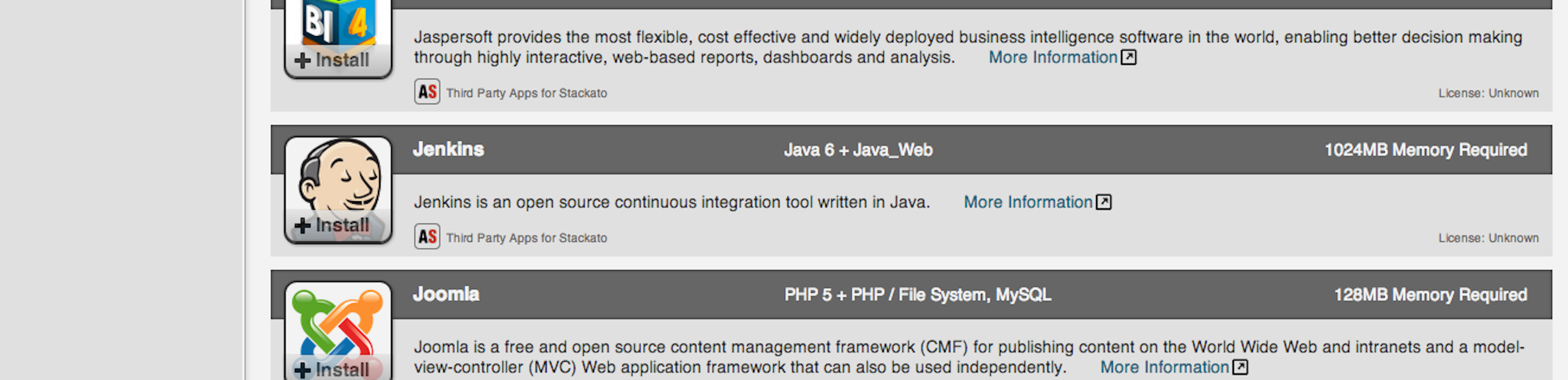
Jenkins Application
Jenkins Application


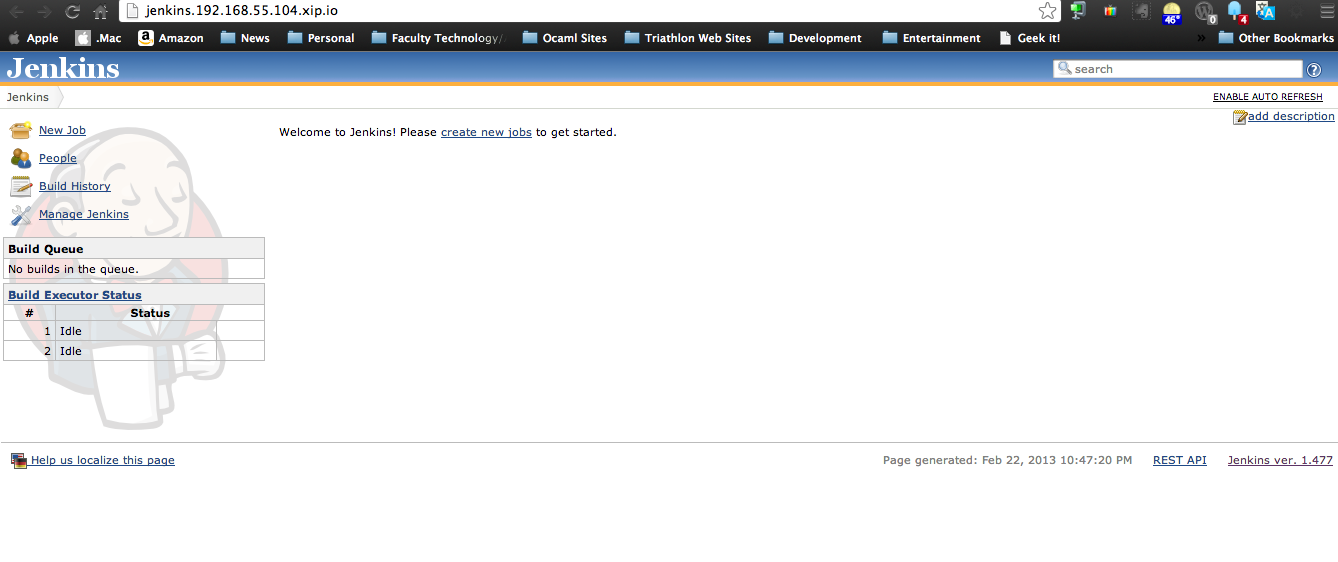
After selecting to install Jenkins, select “Yes” to install.  After the installation takes place,  select “Applications” in the left hand menu.  From there, select the Jenkins application, and select “Start” (its the green arrow to the right of the application window).   Once it has started, you will see the following:

Jenkins Running in Stackato


Now Jenkins is ready to be used.

If anyone wants to test this out on Eucalyptus but doesn’t have access to their own Eucalyptus cloud, fear not, the Eucalyptus Community Cloud has the Stackato image available.  After applying to get access to the Community Cloud, follow the steps above.  The image for Stackato is as follows:

IMAGE emi-859B3D5C stackato_v2.6.6/stackato-cloudinit.manifest.xml 150820662310 available public x86_64 machine eki-6FBE3D2D eri-67463B77 instance-store

And as always, this image and steps can be used on AWS EC2 as well. 🙂

Let me know if there are any questions.  Feedback is always welcome.  Enjoy!

Jenkins, Stackato, Cloud-Init and Eucalyptus == Potent Combination for an On-Premise Continuous Integration Environment

AWS EBS-backed AMI to Eucalyptus Walrus-backed EMI

Preface

A few weeks back, I was doing some testing with the guys from AppScale to get an Eucalyptus Machine Image (EMI) to run on Eucalyptus.  The image that was provided to me was an EBS-backed Amazon Machine Image (AMI), using a published EC2 Lucid Ubuntu Cloud image.  This blog entry describes the procedure to convert an EBS-backed AMI to an Walrus-backed EMI.  The goal here is to demonstrate how easy it is to use Ubuntu Cloud images to set up AppScale on both AWS and Eucalyptus as a hybrid cloud use case.  There are many other hybrid cloud use cases that can be done with this setup, but this blog entry will focus on the migration of AMI images to EMI images.

*NOTE* This entry assumes that a user is experienced with both Amazon Web Services and Eucalyptus.  For additional information, please refer to the following resources:

Prerequisites

Before getting started, the following is needed:

*NOTE* Make sure there is an understanding of the IAM policies on AWS and Eucalyptus.  These are key in making sure that the user on both AWS and Eucalyptus can perform all the steps covered in this topic.

Work in AWS…

After setting up the command-line tools for AWS EC2,  and adding in the necessary EC2 and S3 IAM policies, everything is in place to get started with working with the AWS instances and images. *NOTE* To get help with setting up the IAM policies, check out the AWS Policy Generator.    To make sure things look good, I tested out my EC2 access by running ec2-describe-availability-zones:

$ ec2-describe-availability-zones 
AVAILABILITYZONE us-east-1a available us-east-1 
AVAILABILITYZONE us-east-1b available us-east-1 
AVAILABILITYZONE us-east-1c available us-east-1 
AVAILABILITYZONE us-east-1d available us-east-1

After that, I set up a keypair and SSH access for any instance that is launched within the default security group:

$ ec2-create-keypair hspencer-appscale –region ap-northeast-1 > hspencer-appscale.pem

$ ec2-authorize -P tcp -p 22 -s 0.0.0.0/0 default –region ap-northeast-1

With everything looking good, I went ahead and checked out the AMI that I was asked to test.  Below is the AMI that was given to me:

$ ec2-describe-images ami-2e4bf22f --region ap-northeast-1
IMAGE ami-2e4bf22f 839953741869/appscale-lite-1.6.3-testing 839953741869 available public x86_64 machine aki-d409a2d5 ebs paravirtual xen
BLOCKDEVICEMAPPING EBS /dev/sda1 snap-7953a059 8 true standard
BLOCKDEVICEMAPPING EPHEMERAL /dev/sdb ephemeral0

As you can see, the AMI given to me is an EBS-backed image, and it is in a different region (ap-northeast-1).  I could have done all my work in the ap-northeast-1 region, but I wanted to test out region-to-region migration of images on AWS S3 using ec2-migrate-manifest.  In order to access the EBS-backed instance that is launched, I set up a keypair and SSH access for any instance that is launched within the default security group:

$ ec2-create-keypair hspencer-appscale --region ap-northeast-1 > hspencer-appscale.pem
$ ec2-authorize -P tcp -p 22 -s 0.0.0.0/0 default --region ap-northeast-1

Now that I have my image, keypair and security group access,  I am ready to launch an instance, so I can use the ec2-bundle-vol command to create an image of the instance.  To launch the instance, I ran the following:

$ ec2-run-instances -k hspencer-appscale ami-2e4bf22f –region ap-northeast-1

After the instance is up and running, I scp’d my EC2_PRIVATE_KEY and EC2_CERT to the instance using the keypair created (hspencer-appscale.pem).  The instance already had the latest  version of ec2-api-tools and ec2-ami-tools as part of the installation of AppScale.  Similar to the instructions provided by AWS for creating an instance-store backed AMI from an existing AMI, I  used ec2-bundle-vol to bundle a new image and used /mnt/ (which is ephemeral storage) to store the manifest information.

root@ip-10-156-123-126:~# ec2-bundle-vol -u 9xxxxxxx3 -k pk-XXXXXXXXXXXXXXXX.pem -c cert-XXXXXXXXXXXXXXXXX.pem -d /mnt/ -e /mnt/
Please specify a value for arch [x86_64]: x86_64
Copying / into the image file /mnt/image...
Excluding: 
/dev
/sys
/sys/kernel/security
/sys/kernel/debug
/proc
/dev/pts
/dev
/media
/mnt
/proc
/sys
/mnt/
/mnt/image
/mnt/img-mnt
1+0 records in
1+0 records out
1048576 bytes (1.0 MB) copied, 0.00990555 s, 106 MB/s
mke2fs 1.41.11 (14-Mar-2010)
Bundling image file...
Splitting /mnt/image.tar.gz.enc...
Created image.part.000
……………..

Next, I need to inform the manifest to use us-west-1 as the region to store the image, and not ap-northeast-1.  To do this, I used ec2-migrate-manifest.  *NOTE* This tool can only be used in the following regions: EU,US,us-gov-west-1,us-west-1,us-west-2,ap-southeast-1,ap-southeast-2,ap-northeast-1,sa-east-1.

root@ip-10-156-123-126:~# ec2-migrate-manifest -m /mnt/image.manifest.xml -c cert-XXXXXXXXX.pem -k pk-XXXXXXXXXXXX.pem -a XXXXXXXXXX -s XXXXXXXXX --region us-west-1
Backing up manifest...
warning: peer certificate won't be verified in this SSL session
Successfully migrated /mnt/image.manifest.xml
It is now suitable for use in us-west-1.

Time to upload the bundle to S3 using ec2-upload-bundle:

root@ip-10-156-123-126:~# ec2-upload-bundle -b appscale-lite-1.6.3-testing -m /mnt/image.manifest.xml -a XXXXXXXXXX -s XXXXXXXXXX --location us-west-1
You are bundling in one region, but uploading to another. If the kernel
or ramdisk associated with this AMI are not in the target region, AMI
registration will fail.
You can use the ec2-migrate-manifest tool to update your manifest file
with a kernel and ramdisk that exist in the target region.
Are you sure you want to continue? [y/N]y
Creating bucket...
Uploading bundled image parts to the S3 bucket appscale-lite-1.6.3-testing ...
Uploaded image.part.000
Uploaded image.part.001
Uploaded image.part.002
Uploaded image.part.003
………….

After the image has been uploaded successfully, all that is left to do is register the image.

root@ip-10-156-123-126:~# export JAVA_HOME=/usr
root@ip-10-156-123-126:~# ec2-register -K pk-XXXXXXXXXXXX.pem -C cert-XXXXXXXXXX.pem --region us-west-1 appscale-lite-1.6.3-testing/image.manifest.xml --name appscale1.6.3-testing
IMAGE ami-705d7c35
$ ec2-describe-images ami-705d7c35 --region us-west-1
IMAGE ami-705d7c35 986451091583/appscale1.6.3-testing 986451091583 available private x86_64 machine aki-9ba0f1de instance-store paravirtual xen
BLOCKDEVICEMAPPING EPHEMERAL /dev/sdb ephemeral0

Work in Eucalyptus…

Now that we have the image registered, we can use ec2-download-bundle and ec2-unbundle to get the machine image to an instance running on Eucalyptus, so that we can bundle, upload and register the image to Eucalyptus.

To start off, I followed the instructions for setting up my command-line environment, and Eucalyptus IAM policies on Eucalyptus – similar to what was done for AWS.

Next, I downloaded the lucid-server-cloudimg-amd64.tar.gz file from the Ubuntu Cloud Images (Lucid) site.  After that, I bundled, uploaded and registered the following images:

  • lucid-server-cloudimg-amd64-loader (ramdisk)
  • lucid-server-cloudimg-amd64-vmlinuz-virtual (kernel)
  • lucid-server-cloudimg-amd64.img (root image)

After bundling, uploading and registering those images, I created a keypair, and SSH access for the instance that is launched within the default security group:

euca-add-keypair hspencer-euca > hspencer-euca.pem
euca-authorize -P tcp -p 22 -s 0.0.0.0/0 default

Now, I run the EMI for the Lucid image that was registered:

euca-run-instance -k hspencer-euca --user-data-file cloud-init.config -t m1.large emi-29433329

I used vm.type m1.large so that I can use the space on ephemeral to store the image that I will pull from AWS.

Once the instance is running, I scp’d my EC2_PRIVATE_KEY and EC2_CERT to the instance using the keypair created (hspencer-euca.pem).  After installing the ec2-ami-tools on the instance, I used ec2-download-bundle to download the bundle to /media/ephemeral0, and ec2-unbundle the image:

# ec2-download-bundle -b appscale-lite-1.6.3-testing -d /media/ephemeral0/ -a XXXXXXXXXXX -s XXXXXXXXXXXX -k pk-XXXXXXXXX.pem --url http://s3-us-west-1.amazonaws.com
# ec2-unbundle -m /media/ephemeral0/image.manifest.xml -s /media/ephemeral0/ -d /media/ephemeral0/ -k pk-XXXXXXXXXX.pem

Now that I have the root image from AWS, I just need to bundle, upload and register the root image to Eucalyptus.  To do so, I scp’d my Eucalyptus user credentials to the instance.  After copying the Eucalyptus credentials to the instance, I ssh’ed into the instance and source the Eucalyptus credentials.

Since I have already bundled the kernel and ramdisk for the Ubuntu Cloud Lucid image before, I just need to upload, bundle and register the image I unbundled from AWS.  To do so, I did the following:

euca-bundle-image -i image  
euca-upload-bundle -b appscale-1.6.3-x86_64 -m /tmp/image.manifest.xml
euca-register -a x86_64 appscale-1.6.3-x86_64/image.manifest.xml

Now the image is ready to be launched on Eucalyptus.

Conclusion

As demonstrated above,  because of the AWS fidelity that Eucalyptus provides, it enables setting up hybrid cloud environments with Eucalyptus and AWS that can be leveraged by applications, like AppScale.

Other examples of AMI to EMI conversions can be found here:

https://github.com/eucalyptus/ami2emi

Enjoy!


AWS EBS-backed AMI to Eucalyptus Walrus-backed EMI

Advanced Configuration of DRBD: Eucalyptus 3.2 Walrus High Availability

On December 18, 2012, Eucalyptus  v3.2 was released.  One of the main focuses on this release was to harden the High Availability design of Eucalyptus.   I recently have been looking at additional configuration features of DRBD – which is used by Eucalyptus Walrus HA – that can be used in the Enterprise to help add robustness and more efficiency in disaster recovery efforts.  *NOTE* This blog entry’s main focus is DRBD, which is separate from Eucalyptus.  The goal is to shed light to the additional configuration options that helps DRBD be the robust and reliable product that it is, AND to show how Eucalyptus works with various open source products.

The Baseline

Before getting into the resource configuration options with DRBD, lets talk about the disk setup that was used.  I recommend using LVM for the backing device used with DRBD.  The features that LVM provides allows a cloud admin to add in additional backup measures (e.g. LVM snapshots), and recover from outages more efficiently – minimizing end-user perceived outages.  For more information regarding what LVM is, and all its features, CentOS/RHEL provide great documentation around this application.  Once you feel comfortable with LVM, check out DRBD’s LVM Primer to see how you can leverage LVM with DRBD.  For this blog entry,  the LVM/DRBD setup implemented was using a Logical Volume as a DRBD backing device.

Additional Resource Configuration Options in DRBD

The additional resource configuration options cover the following areas:

All of these options, except the last, is covered in the DRBD 8.3 User Guide.  Although the scripts associated with the automated LVM snapshots are mentioned in the DRBD 8.4 User Guide, the scripts are available and can be used in DRBD 8.3.x. *NOTE* When enabling these options, make sure that Eucalyptus Walrus is stopped.  Also, makes sure the configuration options are done on both nodes.  After the configurations have been done, just run  drbdadm adjust [resource name]  on both nodes for them to take effect.  Typically, I like to test out the configuration changes, then test failover of the DRBD nodes, before starting Eucalyptus Walrus. 

Traffic Integrity Checking

Making sure that all the data replicated between the DRBD is very important.   DRBD has the resource configuration option to use cryptographic message digest algorithms such as MD5, SHA-1 or CRC-32C for end-to-end message integrity checking.  If verification fails for the replicated block against the digest, the peer requests retransmission.

To enable this option for SHA-1 integrity checking, add the following entry to the resource configuration file:

.....
net {
......
......
 data-integrity-alg sha1;
 }
......

For more information regarding this resource configuration option, please refer to the section “Configuring replication traffic integrity checking” in the DRBD 8.3 User Guide.

Efficient Synchronization

DRBD offers checksum-based synchronization to help with making syncing between the DRBD nodes more efficient.  As mentioned in the section “Efficient Synchronization” in the DRBD 8.3 User Guide:

When using checksum-based synchronization, then rather than performing a brute-force overwrite of blocks marked out of sync, DRBD reads blocks before synchronizing them and computes a hash of the contents currently found on disk.  It then compares this hash with one computed from the same sector on the peer, and omits re-writing this block if the hashes match. This can dramatically cut down synchronization times in situation where a filesystem re-writes a sector with identical contents while DRBD is in disconnected mode.

To enable this configuration option, add the following to the resource configuration file:

........
syncer {
........
 csums-alg sha1;
 }
.........

To learn more about this option, please refer to the “Configuring checksum-based synchronization”  in the DRBD 8.3 User Guide.

Automated LVM Snapshots During DRBD Synchronization

When doing DRBD synchronization between nodes, there is chance that if the SyncSourcefails, the result will be a node, with good data, being dead, and a surviving node with bad data.   When serving DRBD off an LVM Logical Volume, you can mitigate this problem by creating an automated snapshot when synchronization starts, and automatically removing that same snapshot once synchronization has completed successfully.

There are a couple of things to keep in mind when configuring this option:

  • Make sure the volume group has enough space on each node to handle the LVM snapshot
  • You should review dangling snapshots as soon as possible. A full snapshot causes both the snapshot itself and its origin volume to fail.

To enable this configuration option, do the following to the resource configuration file:

.......
handlers {
 before-resync-target "/usr/lib/drbd/snapshot-resync-target-lvm.sh";
 after-resync-target "/usr/lib/drbd/unsnapshot-resync-target-lvm.sh";
 }
.........

To learn more about this option, please refer to the section “Using automated LVM snapshots during DRBD synchronization” in the DRBD User Guide.

Conclusion

After enabling these options, the Walrus DRBD resource configuration file will look similar to the following:

resource r0 {

 on viking-01.eucalyptus-systems.com {
 device /dev/drbd1;
 disk /dev/vg02/lv_srv;
 address 192.168.39.101:7789;
 meta-disk internal;
 }
on viking-02.eucalyptus-systems.com {
 device /dev/drbd1;
 disk /dev/vg02/lv_srv;
 address 192.168.39.102:7789;
 meta-disk internal;
 }
syncer {
 rate 40M;
 csums-alg sha1;
 }
net {
 after-sb-0pri discard-zero-changes;
 after-sb-1pri discard-secondary;
 data-integrity-alg sha1;
 }
handlers {
 before-resync-target "/usr/lib/drbd/snapshot-resync-target-lvm.sh";
 after-resync-target "/usr/lib/drbd/unsnapshot-resync-target-lvm.sh";
 }
}

As mentioned earlier, after making these changes – and making sure both DRBD resource files look the same – just run drbdadm adjust [resource name].

Enjoy!

Advanced Configuration of DRBD: Eucalyptus 3.2 Walrus High Availability

OpenLDAP Sandbox in the Clouds

Background

I really enjoy OpenLDAP.  I think folks really don’t understand the power of OpenLDAP, concerning its robustness (i.e. use multiple back-ends), speed and efficiency.

I think its important to have sandboxes to test various technologies.  The “cloud” is the best place for this.  To test out the latest builds provided by OpenLDAP (via git), I created a cloud-init script that allows me to configure, build, and install an OpenLDAP sandbox environment in the cloud (on-premise and/or public).  This script has been tested on AWS and Eucalyptus using Ubuntu Precise 12.04 LTS.   This blog entry is a compliment to my past blog regarding overlays, MDB and OpenLDAP.

Lean Requirements – Script, Image, and Cloud

When thinking about this setup, there were three goals in mind:

  1. Ease of configuration – this is why cloud-init was used.  Its very powerful in regards to bootstrapping instances as they boot up.  You can use Puppet, Chef or others (e.g. Salt Stack, Juju, etc.), but I decided to go with cloud-init.  The script does the following:
    • Downloads all the prerequisites for building OpenLDAP from source, including euca2ools.
    • Downloads OpenLDAP using Git
    • Set up ephemeral storage to be the installation point for OpenLDAP (e.g. configuration, storage, etc.)
    • Adds information into /etc/rc.local to make sure ephemeral gets re-mounted on reboots of the instance, and hostname is set.
    • Configures, builds and installs OpenLDAP.
  2. Cloud image that is ready to go – Ubuntu has done a wonderful job with their cloud images.  They have made it really easy to access them on AWS. These images can be used on Eucalyptus as well.
  3. Public and Private Cloud Deployment – Since Eucalyptus follows the AWS EC2 API very closely, it makes it really easy to test on both AWS and Eucalyptus.

Now that the background has been covered a bit, the next section will cover deploying the sandbox on AWS and/or Eucalyptus.

Deploy the Sandbox

To set the sandbox setup, use the following steps:

  1. Make sure and have an account on AWS and/or Eucalyptus (and the correct AWS/Eucalyptus IAM policies are in place so that you can bundle, upload and register images to AWS S3 and Eucalyptus Walrus).
  2. Make sure you have access to a registered AMI/EMI that runs Ubuntu Precise 12.04 LTS.  *NOTE* If you are using AWS, you can just go to the Ubuntu Precise Cloud Image download page, and select the AMI in the region that you have access to.
  3. Download the openldap cloud-init recipe from Eucalyptus/recipes repository.
  4. Download and install the latest Euca2ools (I used  the command-line tool euca-run-instances to run these instances).
  5. After you have downloaded your credentials from AWS/Eucalyptus, define your global environments by either following the documentation for AWS EC2 or the documentation for Eucalyptus.
  6. Use euca-run-instances with the –user-data-file option to launch the instance:  

    euca-run-instances -k hspencer.pem ....
     --user-data-file cloud-init-openldap.config [AMI | EMI]

After the instance is launched, ssh into the instance, and you will see something similar to the following:

ubuntu@euca-10-106-69-149:~$ df -ah
Filesystem Size Used Avail Use% Mounted on
/dev/vda1 1.4G 1.2G 188M 86% /
proc 0 0 0 - /proc
sysfs 0 0 0 - /sys
none 0 0 0 - /sys/fs/fuse/connections
none 0 0 0 - /sys/kernel/debug
none 0 0 0 - /sys/kernel/security
udev 494M 12K 494M 1% /dev
devpts 0 0 0 - /dev/pts
tmpfs 200M 232K 199M 1% /run
none 5.0M 0 5.0M 0% /run/lock
none 498M 0 498M 0% /run/shm
/dev/vda2 8.0G 159M 7.5G 3% /opt/openldap

Your sandbox environment is now set up.  From here, just following the instructions in the OpenLDAP Administrator’s Guide on configuring your openldap server, or continue from the “Setup – OLC and MDB” section located in my previous blog.  *NOTE* As you configure your openldap server, make sure and use euca-authorize to control access to your instance.

Enjoy!

OpenLDAP Sandbox in the Clouds

Eucalyptus Recipe of the Month Challenge

Its time!

Eucalyptus Hoodie, Shirt, Coffee Mug, Frisbee, and Stickers
Eucalyptus Swag

We are issuing a challenge to the Open Source community.  The challenge is called the “Recipe of the Month Challenge”.

The Rules:

  • Documentation on what application(s) the recipe deploys and how to use it. This also includes what is the purpose of the application(s). (Documentation should be easy to follow and straight-forward.  This will help with the judging and testing of the recipe)
  • Any scripting language/configuration management software can be used. Some examples are as follows:
  • Mention the Image (EMI) used by recipe.  (for example: UEC image, Turnkey image or EMI from emis.eucalyptus.com)

The following categories will be used for judging [scale from 1 (lowest) to 10 (highest):

  • Complexity (the more simple and elegant, the better)
  • Deployment speed/efficiency
  • Failure resiliency (how quickly can the solution return to a healthy operational state after an outage)
  • Creativity

Available swag awards:

  • Eucalyptus Hoodie (color available – dark grey)
  • Eucalyptus Electric Cloud Shirt (colors available – black or white)
  • Eucalyptus Contributor’s Coffee Mug
  • Various Eucalyptus stickers

The winning recipe will be made available on the Eucalyptus Recipes Github repository.  Submissions will be accepted at the beginning of each month.  All submissions must be made to the Recipes mailing list.  The last day allowed for submissions will be the 25th of the month (this allows us time to test out each recipe and grade accordingly).  Feel free to use the Eucalyptus Community Cloud as a testbed for your cloud recipe.   Results announcing the winner will be posted to the Recipes, Images, and Eucalyptus Open Community mailing lists (for more information concerning the mailing lists, please visit the Eucalyptus Mailing Lists page).

Look forward to seeing the recipes.  Remember, its all about creativity, deployment speed, and failure resiliency.  Please send all questions, suggestions, additional ideas to the Recipes Mailing list.

Good luck!  Let the Challenge begin!

Eucalyptus Recipe of the Month Challenge

Overlays + MDB == OpenLDAP Fun!

Recently, I was given the task/honor of setting up an OpenLDAP server to be used for the enterprise. In the past, I have set up a few OpenLDAP servers – some built from source; others from packages. This time, it was different. Back in early May, I went to UDS in Oakland, California. When I was there, I sat in on a track where Howard Chu presented MDB: A Memory-Mapped Database and Backend for OpenLDAP. Every since then, I was inspired to deploy an OpenLDAP server utilizing MDB – which also gave me a chance to play around with Overlays. This blog will give a breakdown of what steps were taken to deploy an OpenLDAP server from source, using MDB backends – utilizing a few overlays.

Prerequisites

First off, we need to get the source code for the latest version of OpenLDAP. Go to the Downloads link on the OpenLDAP home page. Once there, grab any one of the links there and use wget/curl to download the tar-gzipped file.

wget ftp://ftp.OpenLDAP.org/pub/OpenLDAP/openldap-release/openldap-2.4.31.tgz

Once the tar-gzipped file is downloaded, untar it:

tar -zxvf openldap-2.4.31.tgz

The prerequisites for OpenLDAP are listed on the prerequisites page.

The prerequisites I used were as follows:

  • gcc
  • glibc-devel
  • libtool-ltdl
  • db4-devel
  • openssl-devel
  • unixODBC-devel

These were used based upon the features to be utilized with OpenLDAP. To learn more about what features can be used with OpenLDAP, use the configure command to get some help:

cd openldap-2.4.31; ./configure --help

Configure, Build, Install

After determining what features will be used with OpenLDAP, its time to configure the build. Here is an example of running the configure command:

./configure --prefix=/opt/openldap --enable-debug=yes --enable-syslog --enable-dynamic --enable-slapd --enable-dynacl --enable-cleartext --enable-spasswd --enable-modules --enable-rewrite --enable-rlookups --enable-bdb --enable-dnssrv=mod --enable-hdb --enable-mdb --enable-monitor --enable-overlays --with-cyrus-sasl --with-threads --with-tls=openssl CC="gcc" LDFLAGS="-L/usr/lib64/sasl2" CPPFLAGS="-I/usr/include/sasl"

After that has ran successfully, all that is left is to use make to complete the installation. Run the following commands:

make depends
make
make test (Here’s the time to go grab some dinner and watch the NBA playoffs)

If all goes well, all that is left is to install:

make install

Setup – OLC and MDB

Create a user that will run the slapd process:

useradd -m -U -c "OpenLDAP User" -s /bin/bash openldap

Create the directory where the main database will be running:

mkdir /opt/openldap-2.4.31/var/openldap-data/main; chown -R openldap:openldap /opt/openldap-2.4.31/var/openldap-data/main

Create passwords for admin user for config database, and Directory Manager for main directory by using slappasswd:

/opt/openldap-2.4.31/sbin/slappasswd -h {SSHA} (Run this for each password to be created.)

Now we need to configure the server. We will be using the on-line configuration (OLC) of slapd (instead of the old configuration way – slapd.conf. OLC provides close to zero down-time configuration, cn=config and slapd.d directory. For more information concerning usage of cn=config, please refer to Configuring slapd in the online OpenLDAP Administrator’s Guide.

Not only will OLC be used, but MDB will be set up for the main database. For more information about MDB, please refer to the whitepaper, MDB: A Memory-Mapped Database and Backend for OpenLDAP.

For the setup, we need to create a slapd.conf, with the following information:


#######################################################################
# Config database definitions
#######################################################################
dn: cn=config
objectClass: olcGlobal
cn: config
olcArgsFile: /opt/openldap-2.4.31/var/run/slapd.args
olcPidFile: /opt/openldap-2.4.31/var/run/slapd.pid

dn: olcDatabase=config,cn=config
olcDatabase: config
olcRootPW: {SSHA}xxxxxxxxxxxxxxxxxxxxxx
olcAccess: to * by * none
olcLogLevel: -1

dn: cn=schema,cn=config
objectClass: olcSchemaConfig
cn: schema

include: file:///opt/openldap-2.4.31/etc/openldap/schema/core.ldif
include: file:///opt/openldap-2.4.31/etc/openldap/schema/collective.ldif
include: file:///opt/openldap-2.4.31/etc/openldap/schema/corba.ldif
include: file:///opt/openldap-2.4.31/etc/openldap/schema/cosine.ldif
include: file:///opt/openldap-2.4.31/etc/openldap/schema/duaconf.ldif
include: file:///opt/openldap-2.4.31/etc/openldap/schema/dyngroup.ldif
include: file:///opt/openldap-2.4.31/etc/openldap/schema/inetorgperson.ldif
include: file:///opt/openldap-2.4.31/etc/openldap/schema/misc.ldif
include: file:///opt/openldap-2.4.31/etc/openldap/schema/nis.ldif
include: file:///opt/openldap-2.4.31/etc/openldap/schema/openldap.ldif
include: file:///opt/openldap-2.4.31/etc/openldap/schema/ppolicy.ldif

# Frontend settings
#
dn: olcDatabase=frontend,cn=config
objectClass: olcDatabaseConfig
olcDatabase: frontend
olcAccess: to dn.base="" by * read
olcAccess: to dn.base="cn=Subschema" by * read
olcAccess: to *
by self write
by users read
by anonymous auth

#######################################################################
# MDB database definitions
#######################################################################
#
dn: olcDatabase=mdb,cn=config
objectClass: olcDatabaseConfig
objectClass: olcMdbConfig
olcDatabase: mdb
olcSuffix: dc=example,dc=com
olcRootDN: cn=Directory Manager,dc=example,dc=com
olcRootPW: {SSHA}xxxxxxxxxxxxxxxxxxxxxx
olcDbDirectory: /opt/openldap-2.4.31/var/openldap-data/main
olcDbIndex: objectClass eq
olcAccess: to attrs=userPassword by dn="cn=Directory Manager,dc=example,
dc=com" write by anonymous auth by self write by * none
olcAccess: to attrs=shadowLastChange by self write by * read
olcAccess: to dn.base="" by * read
olcAccess: to * by dn="cn=Directory Manager,dc=example,dc=com" write by
* read
olcDbMaxReaders: 0
olcDbMode: 0600
olcDbSearchStack: 16
olcDbMaxSize: 4294967296
olcAddContentAcl: FALSE
olcLastMod: TRUE
olcMaxDerefDepth: 15
olcReadOnly: FALSE
olcSyncUseSubentry: FALSE
olcMonitoring: TRUE
olcDbNoSync: FALSE
olcDbEnvFlags: writemap
olcDbEnvFlags: nometasync

Schema Information

In the schema section, the following LDIFs were included:

  • collective => Collective attributes
  • corba => Corba Object
  • core => OpenLDAP “core”
  • cosine => COSINE Pilot
  • duaconf => Client Configuration
  • dyngroup => Dynamic Group
  • inetorgperson => InetOrgPerson
  • misc => Miscellaneous Schema
  • nis => Network Information Service
  • openldap => OpenLDAP Project
  • ppolicy => Password Policy Schema

For more information about the schema configuration, please refer to the following links:

Config Information

For more information concerning using OLC (cn=config), please check out these links:

After the slapd.conf file is set up, use slaptest to create the slapd.d directory to finish out the configuration:

/opt/openldap-2.4.31/sbin/slaptest -f /opt/openldap-2.4.31/etc/openldap/slapd.conf -F /opt/openldap-2.4.31/etc/openldap/slapd.d

Ready to Start the OpenLDAP Server

Now its time to start the OpenLDAP server. To start OpenLDAP, run the following command:

/opt/openldap-2.4.31/libexec/slapd -F /opt/openldap-2.4.31/etc/openldap/slapd.d/ -h "ldap:/// ldapi:/// ldaps:///" -d -1 -u openldap -g openldap

If all is well, the overlays can now be added.

Overlays and Additional Databases

Rewrite Overlay

The Rewrite Overlay uses the slapo-rwm overlay and the relay proxy backend. This overlay/backend combo will allow “dc=example,dc=com” or “o=example” to be used by ldap tools, such as ldapsearch.

To implement this, create an LDIF file with the following information


# cat rewrite-overlay.ldif

dn: olcDatabase={2}relay,cn=config
objectClass: olcDatabaseConfig
objectClass: olcRelayConfig
olcDatabase: {2}relay
olcSuffix: o=example
olcRelay: dc=example,dc=com

dn: olcOverlay={0}rwm,olcDatabase={2}relay,cn=config
objectClass: olcOverlayConfig
objectClass: olcRwmConfig
olcOverlay: {0}rwm
olcRwmRewrite: {0}rwm-rewriteEngine "on"
olcRwmRewrite: {1}rwm-suffixmassage "dc=example,dc=com"

Once that file is created, add the ldif to the cn=config database:

ldapadd -x -D cn=admin,cn=config -w -f rewrite-overlay.ldif

When data is added to dc=example,dc=com, searches can be done using the base “dc=example,dc=com” or “o=example”.

Monitoring

Setting up the monitoring database gives the ability to monitor the status and gain statistics of the OpenLDAP server through ldapsearch.

To set up the monitoring database, create the following LDIF:


# cat monitor.ldif

dn: olcDatabase={3}Monitor,cn=config
objectClass: olcDatabaseConfig
objectClass: olcMonitorConfig
olcDatabase: {3}Monitor
olcAccess: {0}to * by dn="cn=Directory Manager,dc=example,dc=com" read

After this file has been created, use ldapadd to add it to the config database:

ldapadd -x -D cn=admin,cn=config -w -f monitor.ldif

Now, statistics can be gathered by the Directory Manager searching against the monitor database:

ldapsearch -x -D 'cn=Directory Manager,dc=example,dc=com' -w -b 'cn=Monitor' -s base 1.1

Auditing Overlay

The auditing overlay is great for security audits. For a given database, an LDIF file is created of all ldap operations completed against the database. This is also helpful for disaster recovery as well.

Since the config database and the main mdb database (dc=example,dc=com) will be accessed the most, lets create an audit overlay for them. To do so, add the following information to an LDIF:


# cat auditlog.ldif

dn: olcOverlay={0}auditlog,olcDatabase={0}config,cn=config
objectClass: olcOverlayConfig
objectClass: olcAuditlogConfig
olcOverlay: {0}auditlog
olcAuditlogFile: /var/log/ldap/auditlog-config.ldif

dn: olcOverlay={0}auditlog,olcDatabase={1}mdb,cn=config
objectClass: olcOverlayConfig
objectClass: olcAuditlogConfig
olcOverlay: {0}auditlog
olcAuditlogFile: /var/log/ldap/auditlog-mdb.ldif

To apply the overlay, use ldapadd on the config database:

ldapadd -x -D cn=admin,cn=config -w -f auditlog.ldif

There will now be an ldif file for each database under /var/log/ldap directory.

Access Log Overlay

The accesslog overlay is another overlay that is implemented with data storage database. This overlay allows the Directory Manager to see all successful ldap modifies, deletes, searches, adds against the main directory (dc=example,dc=com). This information can be accessed using ldapsearch. There is the ability to implement log purging as well. In this setup, any logs older than 7 days will be deleted. Since the database will be stored under /opt/openldap-2.4.31/var/openldap-data/access, we need to make sure and create that directory, and set the ownership to the openldap user:

mkdir /opt/openldap-2.4.31/var/openldap-data/access;chown -R openldap:openldap /opt/openldap-2.4.31/var/openldap-data/access

To set up the accesslog overlay, create the following LDIF:


# cat access-log.ldif
dn: olcDatabase={4}mdb,cn=config
objectClass: olcDatabaseConfig
objectClass: olcMdbConfig
olcDatabase: {4}mdb
olcDbDirectory: /opt/openldap-2.4.31/var/openldap-data/access
olcSuffix: cn=log
olcDbIndex: reqStart eq
olcDbMaxSize: 1073741824
olcDbMode: 0600
olcAccess: {0}to * by dn="cn=Directory Manager,dc=example,dc=com" read

dn: olcOverlay={1}accesslog,olcDatabase={1}mdb,cn=config
objectClass: olcOverlayConfig
objectClass: olcAccessLogConfig
olcOverlay: {1}accesslog
olcAccessLogDB: cn=log
olcAccessLogOps: all
olcAccessLogPurge: 7+00:00 1+00:00
olcAccessLogSuccess: TRUE
olcAccessLogOld: (objectclass=person)

Logging will be done for any action done by any person in the main directory (dc=example,dc=com). Now its time to add the ldif to the config database:

ldapadd -x -D cn=admin,cn=config -w -f access-log.ldif

Logging can now be accessed by the Directory Manager by using ldapsearch:


# ldapsearch -D "cn=Directory Manager,dc=example,dc=com" -w -b cn=log

# extended LDIF
#
# LDAPv3
# base with scope subtree
# filter: (objectclass=*)
# requesting: ALL
#

# log
dn: cn=log
objectClass: auditContainer
cn: log

# 20120607233002.000000Z, log
dn: reqStart=20120607233002.000000Z,cn=log
objectClass: auditBind
reqStart: 20120607233002.000000Z
reqEnd: 20120607233002.000001Z
reqType: bind
reqSession: 1071
reqAuthzID:
reqDN: cn=Directory Manager,dc=example,dc=com
reqResult: 0
reqVersion: 3
reqMethod: SIMPLE
........

Thats pretty much it. OpenLDAP using MDB, with some pretty cool overlays. What more could you ask for?

Overlays + MDB == OpenLDAP Fun!